How to Ban a Player on Your Minecraft Server
What Is a Ban?
A ban is a way for you and your Minecraft Server operators to prevent unwanted players from joining. Minecraft includes two commands to ban a player: “/ban” and “/ban-ip”. The first is used to ban the player’s account, and the second one is used to ban both the account and the player's IP. Minecraft also includes two commands to unban a player, “/pardon” and “/pardon-ip”. The first is used to unban a player who was banned by the “/ban” command, and the second is for a player who was banned by the “/ban-ip” command.
In this guide, we'll be explaining how to use these commands in your Minecraft Server.
Before Starting
Make sure you have an active Minecraft server. If you don't have one, consider choosing Iceline Hosting as your hosting provider!
Iceline Hosting game panel supports instant setup, along with some features like an automatic Turbo Mode for mod-heavy CPU performance bursts (like world generation), enterprise-grade DDoS protection via the Iceline Shield Panel, and global locations (London, Frankfurt, Virginia, Texas, Oregon, Singapore, Sydney) to ensure low-latency play. If you don't have a server, feel free to check our available plans and start your journey today!

How to Ban a Player
- Join your Minecraft server and make sure you are a server operator.
- In chat, type the “/ban” command and add the player's name after it. Optionally, you can also provide the reason for the ban.
- The command should look like this: “/ban Javier Rule Breaker 2nd time”
- Send the command, and the player’s account will get banned right away
How to IP Ban a Player
- Join your Minecraft server and make sure you are a server operator
- In chat, type the “/ban-ip” command and add the player's name after it. Optionally, you can also provide the reason for the ban.
- The command should look like this: “/ban-ip Javier Griefing is not allowed”
- Send the command, and the player’s IP and account will get banned right away
How to Unban a Player
- Join your Minecraft server and make sure you are a server operator
- In chat, type the “/pardon” command and add the player's name after it.
- The command should look like this: “/pardon Javier”
- Send the command, and the player’s account will get unbanned
How to Unban a Player's IP
- Join your Minecraft server and make sure you are a server operator
- In chat, type the “/pardon-ip” command and add the player's name after it.
- The command should look like this: “/pardon-ip Javier”
- Send the command, and the player’s IP and account will get unbanned
That's it! With this simple guide, you learned how to use the moderation tools available to all Minecraft servers.
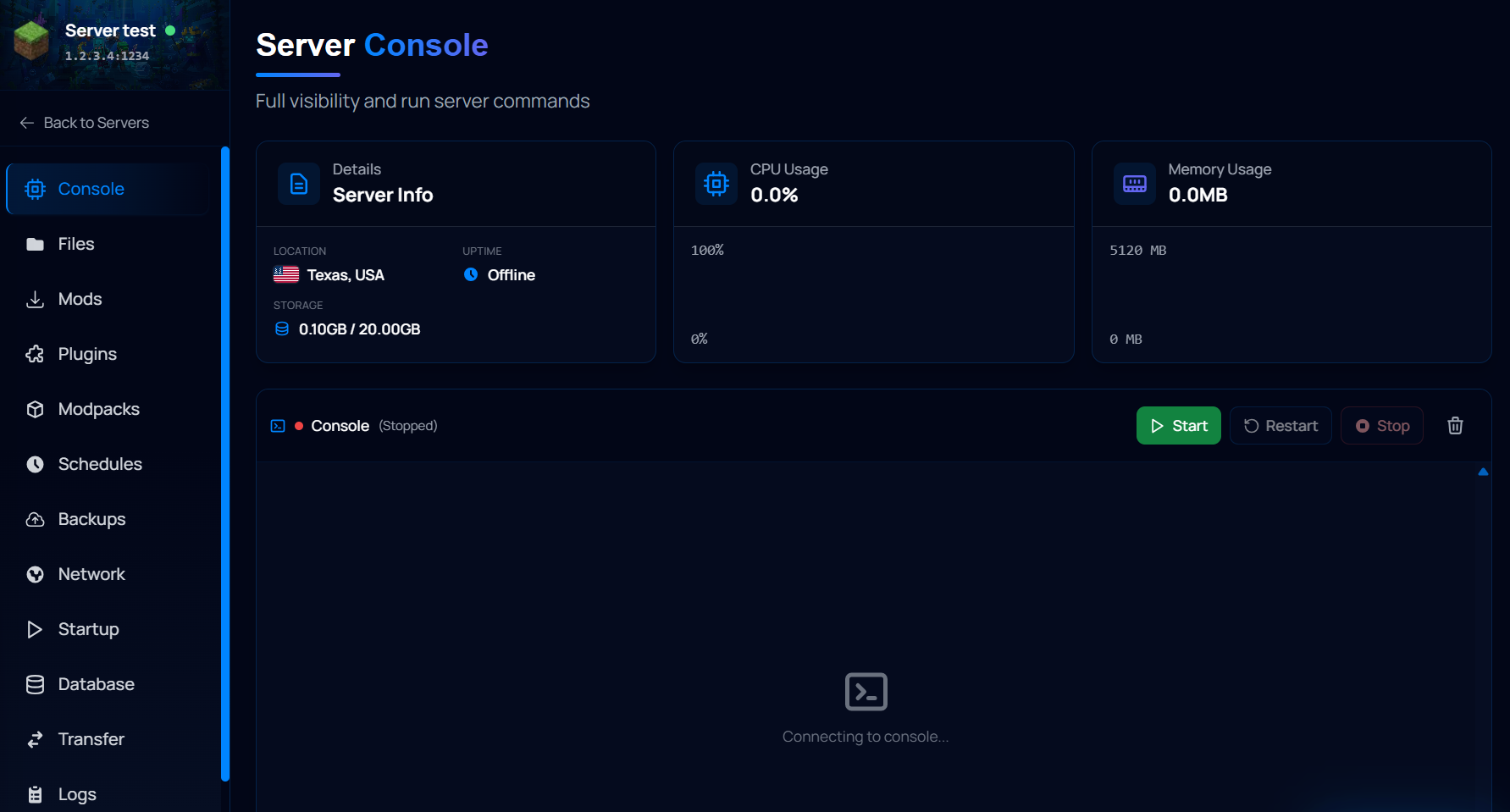
Remember that you can also use these commands directly on your game panel console, ensuring you can manage the server even when you're not in-game!
Facing Any Issues?
If you have followed all the steps in this tutorial, you should have successfully banned/unbanned the player. If it didn’t work, make sure you have typed the player name correctly, with or without caps. If you are still having issues after this, feel free to contact our support team for further assistance. We're happy to help!