How to Change your S&Box Server Settings
The long-awaited spiritual successor to Garry's Mod, s&box, also supports multiplayer, meaning that you can set up your own dedicated server and play with your friends, either using one of the available game modes made by the community or a custom one. With that said, while the default configuration is a good starting point, it's essential to change the settings to give it your personal touch and ensure it works properly for your case.
Mastering these server details empowers admins to tune specific aspects of the server, tailoring the experience to their liking. In this guide, you'll learn how to change your s&box server settings.
Before Starting
Make sure you already have a working Dedicated s&box Server. For this, Iceline Hosting is your best choice!
Iceline Hosting game panel supports instant setup, along with some features like an automatic Turbo Mode for mod-heavy CPU performance bursts (like world generation), enterprise-grade DDoS protection via the Iceline Shield Panel, and global locations (London, Frankfurt, Virginia, Texas, Oregon, Singapore, Sydney) to ensure low-latency play. If you don't have a server, feel free to check our available plans and start your journey today!
How to change the Server Settings through the Game Panel Startup tab
Thanks to the Iceline Game panel, your server settings can be edited through the server startup tab, saving you some time! Just follow these steps:
- Log in to your Iceline Game Panel.
- Select your s&box server and turn it off.
- In your navigation bar, click on Startup.
- Locate the variables you want to edit
- Replace the default values with anything of your choice.
- Click on Save Changes when you're finished.
- Restart the server.
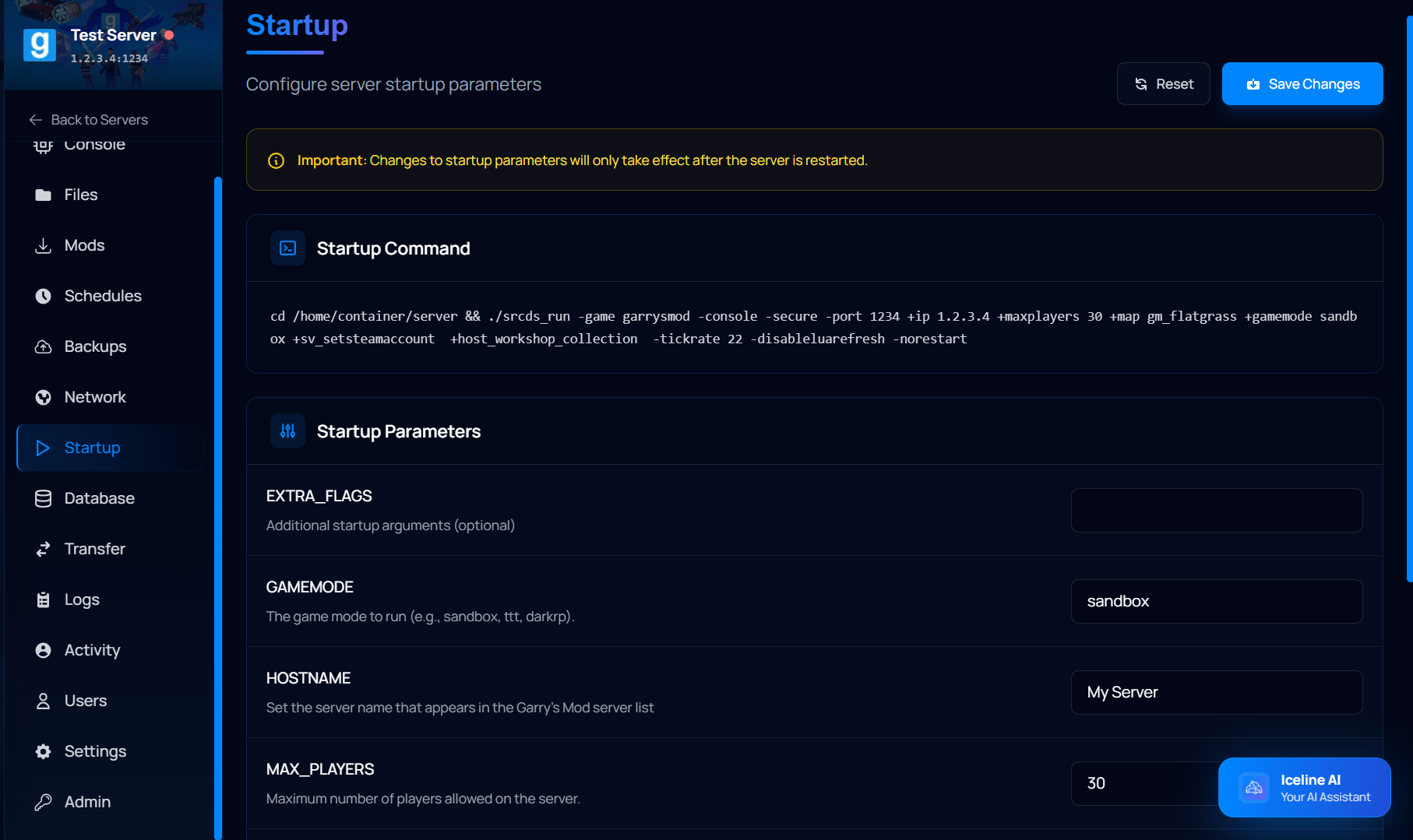
Through the Startup tab of the game panel, you'll be able to modify values like the maximum number of players (MAX_PLAYERS), the server hostname (HOSTNAME), the default game mode (GAMEMODE), the default map (SRCDS_MAP) and more.
How to change the s&box Server Settings through the configuration file
- Log in to your Iceline Game Panel.
- Select your s&box server and turn it off.
- In your navigation bar, click on Files.
- Locate the configuration file and open it.
- Inside the configuration file, change the Hostname variable to anything of your choice, make sure it's a unique name!
- Click on Save File when you're finished.
- Restart the server.
Changing the server settings through the configuration file may be a bit more difficult, so this option is only recommended if you know what you're doing, invalid values may prevent your server from working properly.
Ask the AI to change the server settings for you!
Iceline Hosting features a powerful AI tool included with all our game servers that can be used to speed the management process and automate certain tasks. It supports instructions through natural language and checks the server console for potential errors. Learn more about our Iceline AI assistant here!
Instead of making these changes yourself through the configuration files or the Startup tab, you can just ask the Iceline AI to change anything for you! The AI will check your configuration file, apply the changes, and request your authorization to process them. Automatically and in just a few seconds!

Facing any issues?
Make sure you've set valid values for the variables, otherwise they may be ignored, or cause issues on the server. If you continue having issues, feel free to contact us, or ask the Iceline AI to check your server console and suggest changes to you.