How to Connect to Your S&Box Server
The long-awaited s&box is finally around the corner, and the community is very excited. Built in the modern Source 2 that supports better graphics and physics, s&box will be the perfect tool for players to tailor experiences to their liking, and offer them to other players to enjoy as well. The built-in features, like the asset browser and share options, make this a very easy process!
Fortunately for everyone, s&box supports multiplayer and dedicated servers, so you can set up your own server, whether you want to build an RP server or just test a map with your friends; the choice is yours!
With that said, it's important to know how to find your server IP and establish a connection once it's set up. In this guide, we'll be explaining how to connect to your s&box Server.
Before Starting
Make sure you already have a working Dedicated s&box Server. For this, Iceline Hosting is your best choice!
Iceline Hosting game panel supports instant setup, along with some features like an automatic Turbo Mode for mod-heavy CPU performance bursts (like world generation), enterprise-grade DDoS protection via the Iceline Shield Panel, and global locations (London, Frankfurt, Virginia, Texas, Oregon, Singapore, Sydney) to ensure low-latency play. If you don't have a server, feel free to check our available plans and start your journey today!
How to get your Server IP
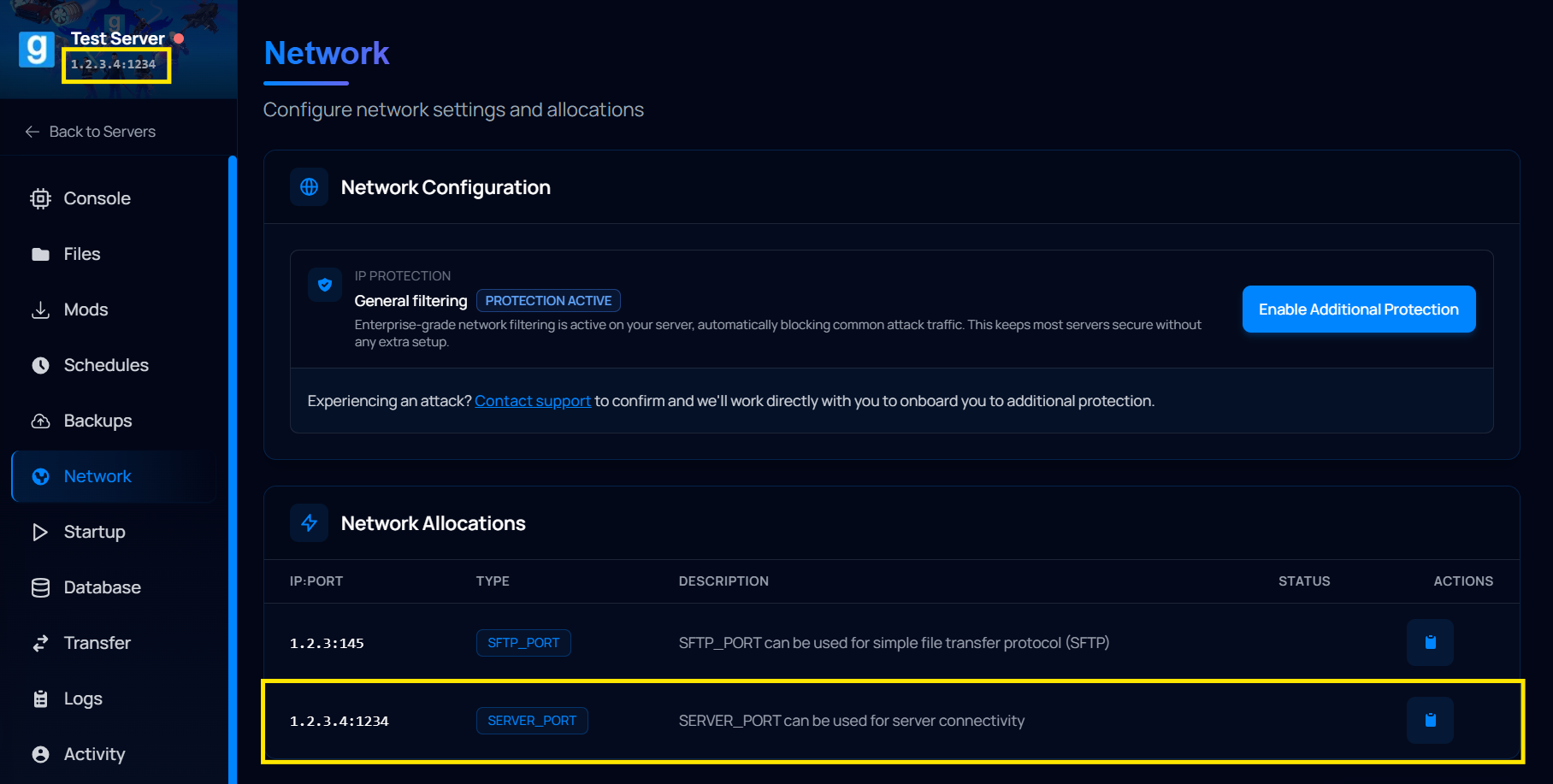
Before starting, make sure to copy your server IP, which is located on your server's game panel.
- Log in to your Iceline Game Panel.
- Select your s&box server.
- Copy the IP and Port located down to your server name.
- You can also find your server IP under the network tab of the game panel.
If you're using a VPS, just use the VPS IP and the s&box port, which should be 27015 by default.
How to connect to your s&box Server
Now that you've located and copied your server IP, you can follow these steps to connect to your s&box server:
- Launch s&box.
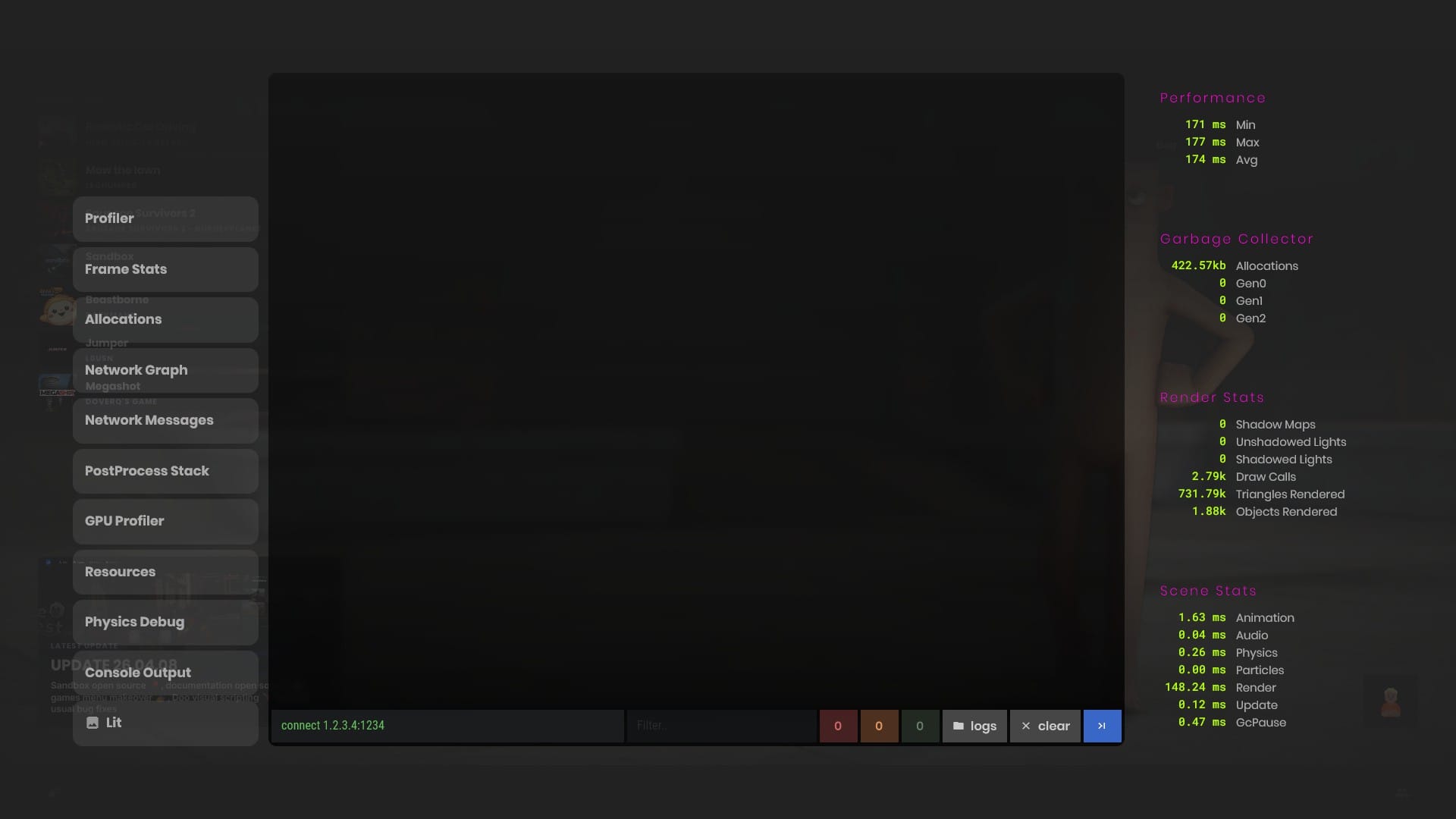
- Press "~" to open the in-game console.
- Type connect followed by your server IP and port.
- For example, connect 1.2.3.4:1234
- Press enter and wait for the connection to be established.
Connecting through the server browser
Alternatively, you can use the server browser to find and join your server, for this, just follow these steps:
- Launch s&box.
- Head to the Servers tab.
- In the search bar, type your server name.
- Locate your server on the list and click on the "play" button.
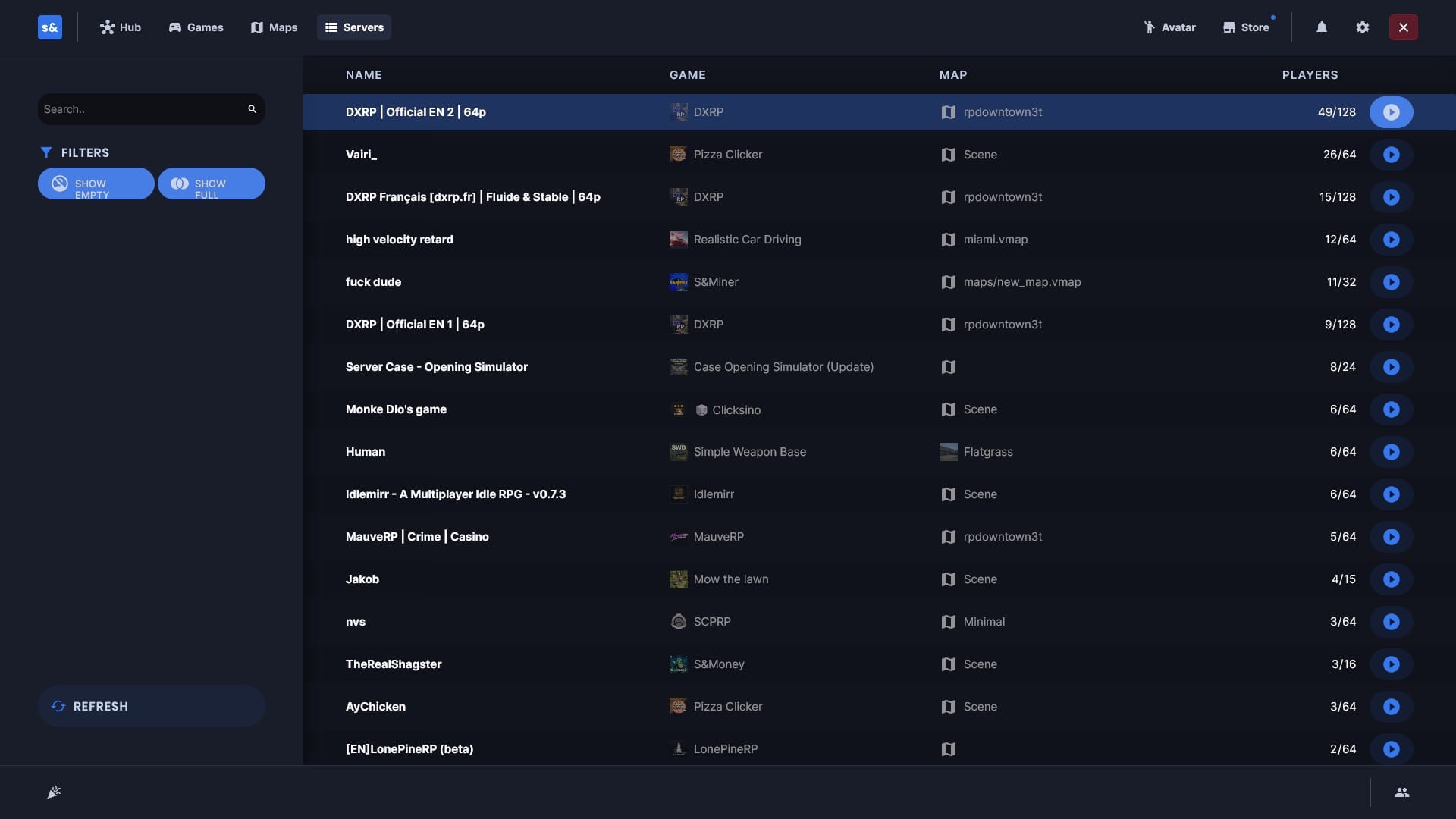
That's it! With these simple steps, you've now learned how to connect to your s&box server. We heavily recommend choosing a unique server name and description for your server, that way, players can locate it through the server browser later on without any issues!
Facing any issues?
Make sure you've typed/pasted the correct IP and that your server is online. If you continue having issues, feel free to contact us, or ask the Iceline AI to check your server console and suggest changes to you.