How to Change the Game Mode on Your Minecraft Server
What is a Minecraft Game mode?
In Minecraft, there are 5 different game modes that you can play. Each adds a whole new experience to your gameplay. For your Minecraft Server, you can choose a default game mode that all players will be set to upon joining. These game modes can include Survival, Creative, Adventure, Spectator, and Hardcore.
While most of these can be changed in-game, Hardcore mode must be set only through files, as this is more of a gametype. With each of these having its own unique feature, you will need to make a decision on which is best for your Minecraft server!
How to Change Your Server Game Mode
- Head to the game panel and stop your server
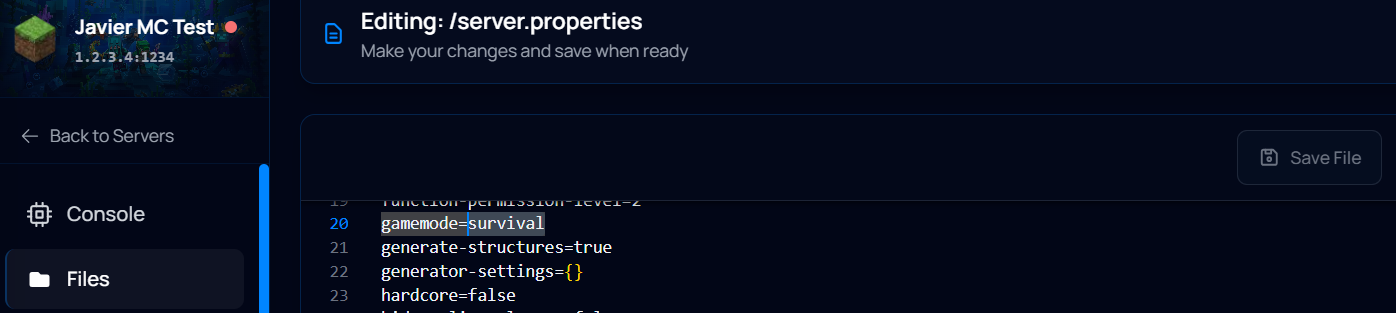
- Head to "Files" to manage your server files, and open your server.properties file.
- In the file, go to the gamemode line and replace the current gamemode value with the one you would like.
- Save the file and start the server.
How to Enable Hardcore Mode
- Head to the game panel and stop your server.
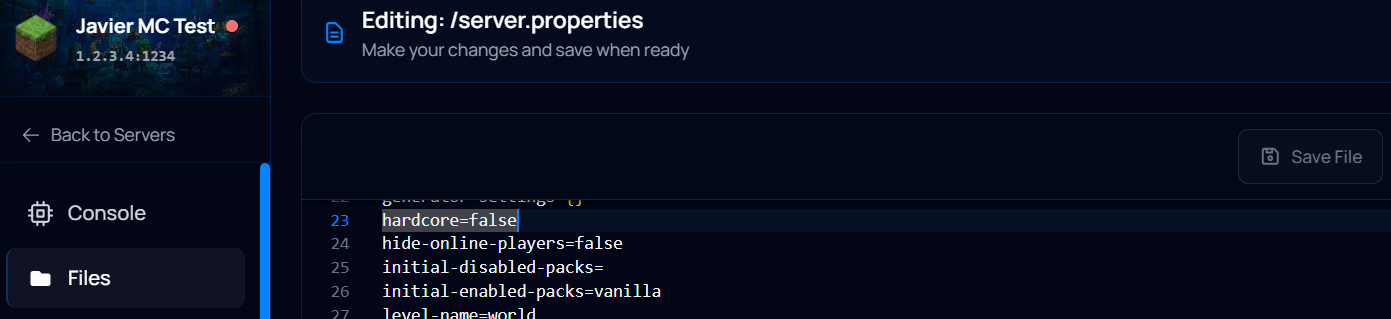
- Head to "Files" to manage your server files, and open your server.properties file.
- In the file, go to the hardcore line and change it from false to true
- Save the file and start the server.
How to Change Your Game Mode In-Game
- Join your server and make sure you are a server operator. You can learn how to set yourself as server operator here.
- To change the gamemode for yourself, type this command in chat: for example, “/gamemode creative”
- To change the gamemode for another player, the command should be typed like this: “/gamemode creative playername”
Changing the Game Mode through Iceline AI
The Iceline AI is a powerful tool included with our game servers that you can use to manage your server. Through a simple conversation, you can ask the AI to make any change for you!
To change your server gamemode, just ask the AI to do it for you! The AI will send the command or make the change to your configuration file and save you the trouble, very simple!

Facing Any Issues?
If you have followed all of the steps in this tutorial your default server gamemode should have changed. If it didn’t change, make sure you have typed the gamemode correctly and without any caps or spaces. If you are still having issues after this, feel free to contact Iceline Hosting support for further assistance.