How to Install Paper on Your Minecraft Server
What is Paper?
PaperMC, or Paper, is a highly optimized fork of the Spigot server version. This server version aims to fix gameplay mechanics in Minecraft, along with improving performance. One of the benefits of this version is that it fixes numerous features and bugs that are in Spigot. When trying to fully optimize your Minecraft server, Paper is the recommended version. The PaperMC project has worked countless hours to ensure that your Minecraft server can run as smoothly as possible. Plugins from both Spigot and Bukkit will work with Paper as well. If you are looking to start an MC server hosting server that has plugins, we recommend Paper above all other versions.
In this tutorial, we will be showing you how to install Paper onto your MC server hosting.
How to Install Paper
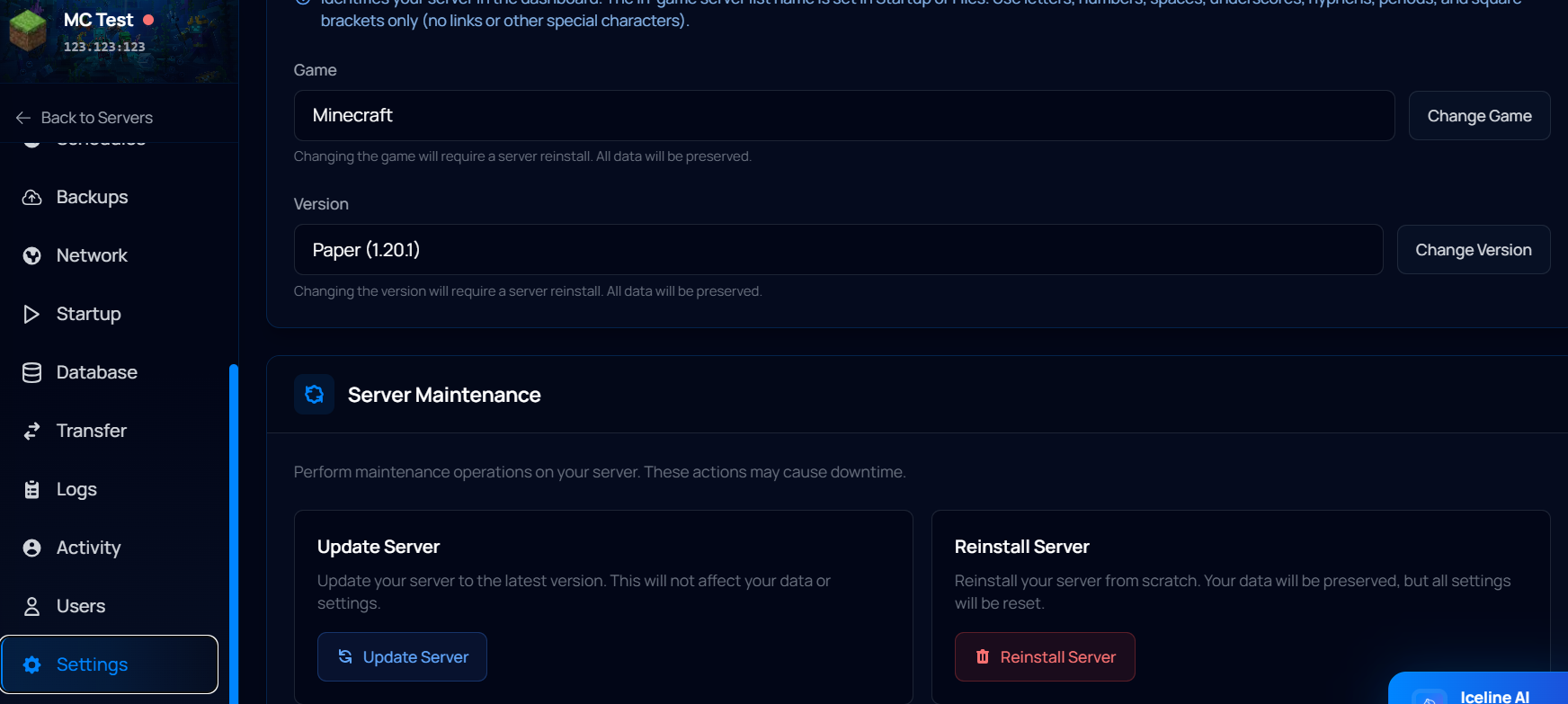
- Head to your Iceline Game Panel and stop your Minecraft server.
- In your navigation bar, locate “Settings”.
- Locate the "Version" box and click on "Change Version".
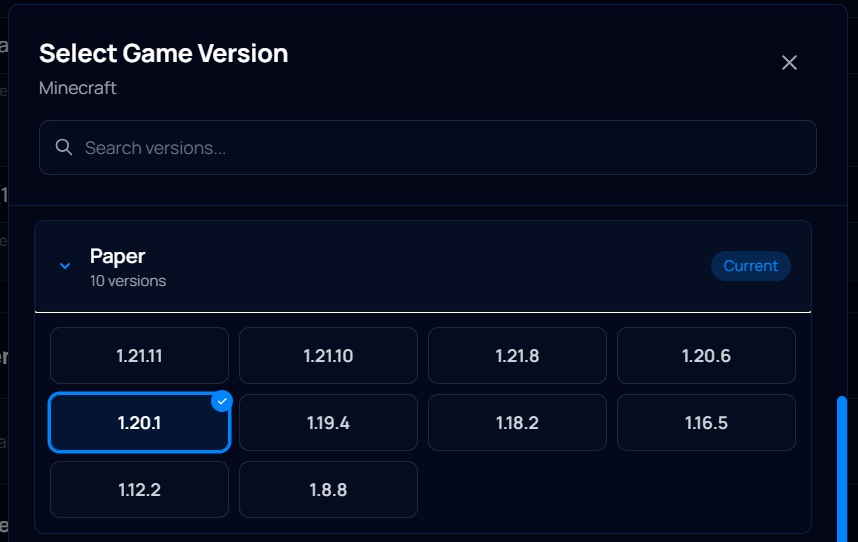
- Select the Paper version you want to use.
- A box will appear informing you that this will require a reinstall. Click "Change Version" when you're ready to proceed.
- Wait for the installation to finish.
- Go back to the console and start your server.
Installing Paper on your Minecraft Server through Iceline AI
The Iceline AI is a powerful tool included with our game servers that you can use to manage your server. Through a simple conversation, you can ask the AI to make any change for you!
To install Paper on your server, just ask the AI to do it for you! The AI will check the available versions and ask for confirmation, as simple as that!

How to Install PaperMC manually (For VPS plans)
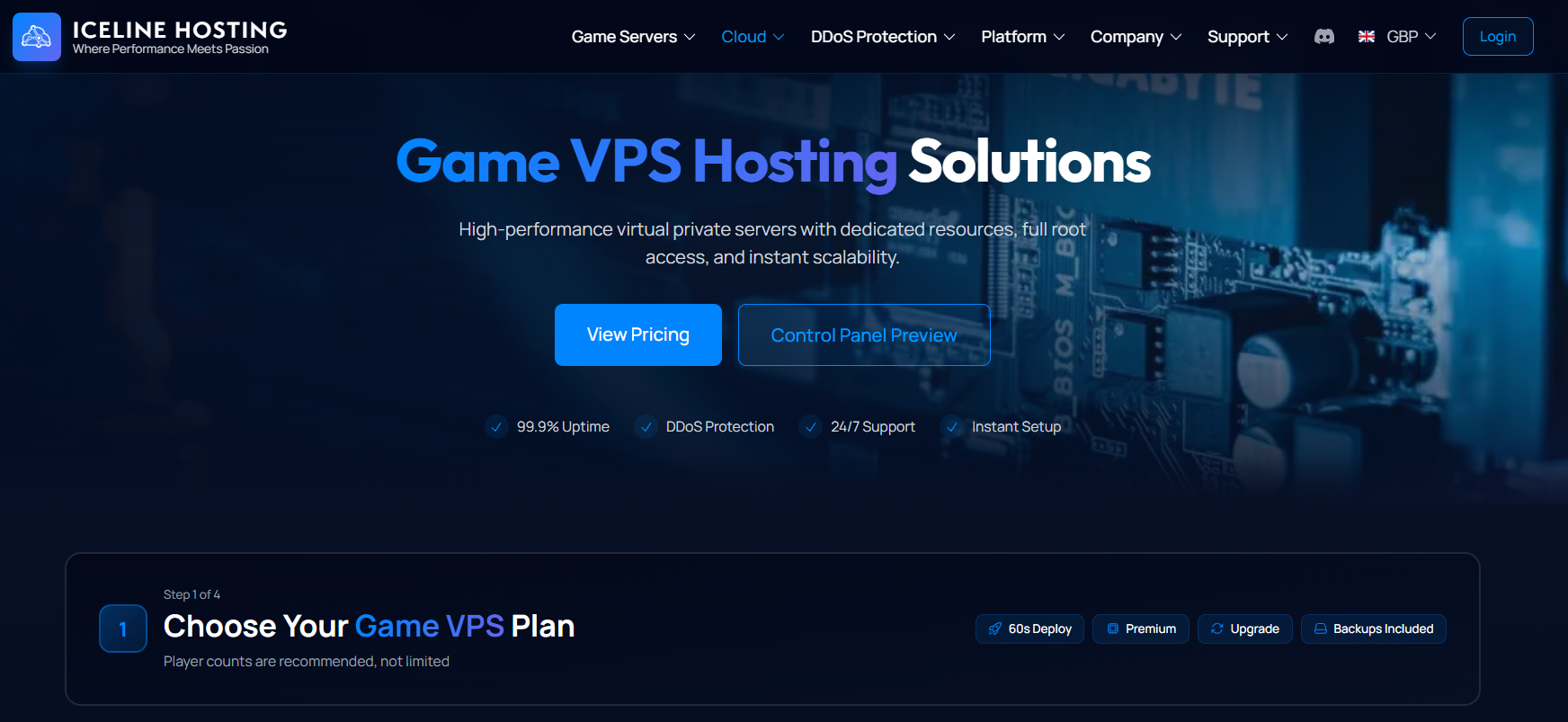
Before starting, make sure you have a VPS plan with enough specs for the server. You can check our available Game VPS plans here. Additionally, make sure you've downloaded the dependencies, such as Java.
- Access your VPS through the Windows Remote Desktop App.
- In your VPS, head to the PaperMC download website here.
- Find the version of Minecraft you want your server to run, then press the download button.
- Create a new folder for your server and move the previously downloaded file.
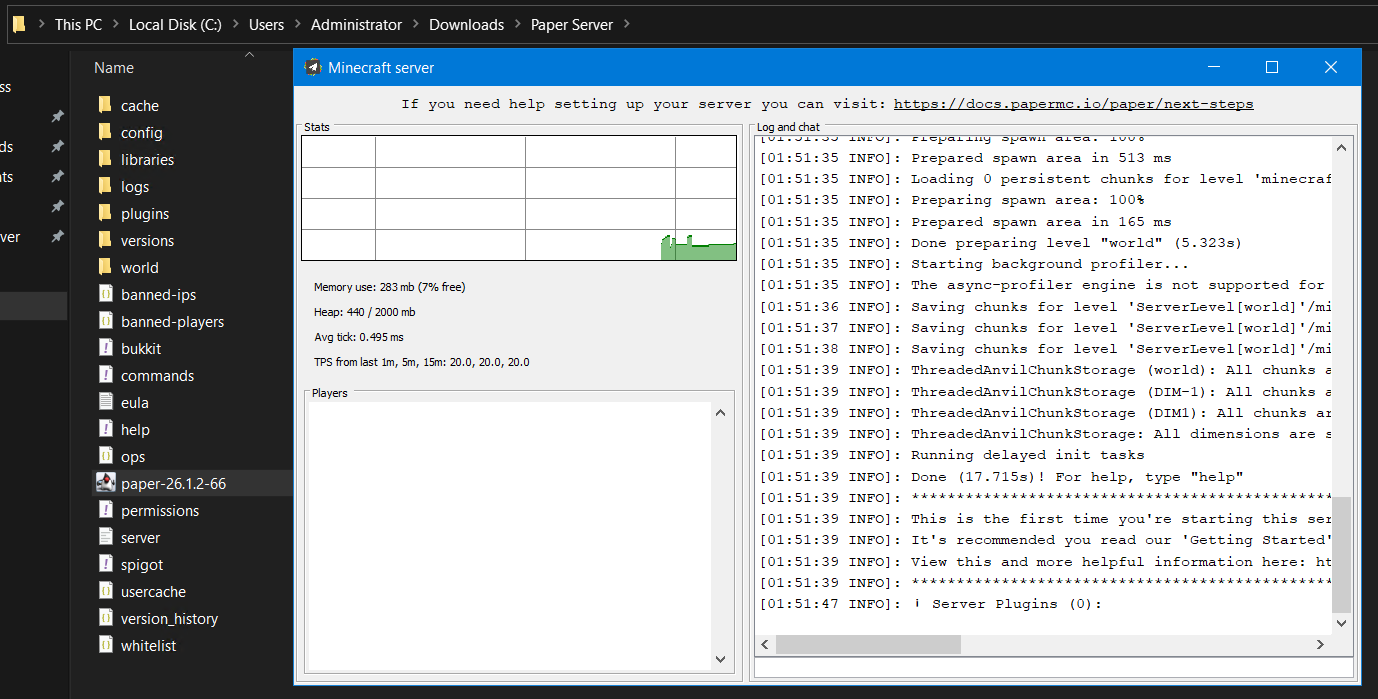
- Double-click on the file to run it. This will generate some files.
- Open the "eula.txt" file and change its value from "false" to "true.
- Double-click the previously downloaded file again to generate the remaining server files.
- The server console will show up, and your server will be online!
Note: Make sure to open ports for your Game server (Minecraft uses 25565 TCP by default); otherwise, you won't be able to connect to it.
And that's it! You will be able to use plugins on your server now without any problems! For this, you can use the plugin installer from the game panel, or you can install the plugins manually on your server. Feel free to read this guide to learn how to do it!
Facing Any Issues?
Make sure the file was installed correctly, and the server started. If you are still having issues, feel free to contact our support team at Iceline Hosting!